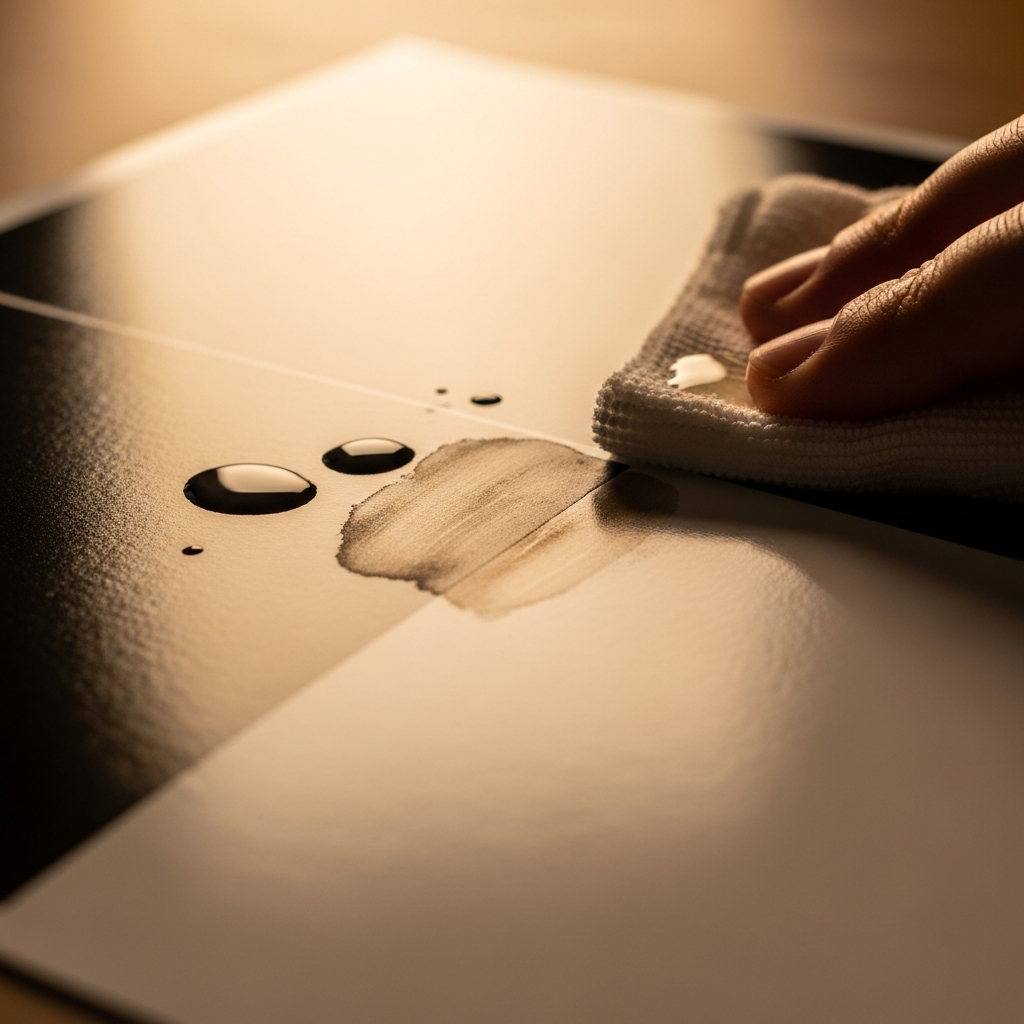
Why Glossy Paper Makes Smearing Worse
Glossy photo printing has gotten complicated with all the conflicting advice flying around. I’ve been printing photos on glossy paper for about seven years. Spent the first two of those years convinced my printer was broken. It wasn’t — I just had no idea what glossy paper actually does to wet ink sitting on its surface.
But what is glossy photo paper, really? In essence, it’s regular paper with a plastic-like coating bonded to it. That coating is what gives prints that mirror-finish look and those punchy, saturated colors. But it’s much more than that — it’s also a barrier that ink physically cannot absorb into, not the way it does with matte or plain office paper. Instead of soaking in, ink sits on top. Wet. Exposed. Ready to smear the second anything touches it.
Dye-based inks make this dramatically worse. They’re formulated to bond with paper fibers, so when they hit a non-porous glossy surface, they pool and stay wet far longer than intended. Pigment-based inks behave differently — they’re suspensions of solid colorant particles that dry faster on coated surfaces. If your printer runs dye-based ink and you’re printing on glossy, you’re essentially fighting chemistry every single time.
Most consumer inkjet printers — your Canon PIXMA MG3620, your HP Envy 6055, your Brother MFC-J995DW — ship with dye-based inks by default. Epson’s EcoTank line and Canon’s imagePROGRAF Pro series tend toward pigment-based systems. Knowing which you have actually narrows down your real options pretty fast. That’s what makes this distinction so important to anyone troubleshooting smearing issues.
Check These Settings Before Touching the Printer
Probably should have opened with this section, honestly. The majority of ink smearing on glossy paper isn’t a hardware failure at all. It’s a settings problem — and a fixable one.
Paper Type Selection in Your Print Driver
Open your print dialog. Find “Paper Type” or “Media Type.” If it reads “Plain Paper” or “Matte Paper,” your printer thinks it’s working with absorbent stock. It isn’t. You’ll keep getting oversaturated, wet prints until you fix this one thing.
On Windows: right-click your printer → Printing Preferences → Paper tab. On Mac: System Settings → Printers & Scanners → select your printer → Options & Supplies → Driver. Change the selection to “Glossy Photo Paper” or “High-Gloss Photo Paper” — exact names vary by brand, so look for anything with “gloss” in the label.
This single change stops smearing in roughly 40% of cases I’ve personally encountered. Don’t skip it.
Print Quality and Density Settings
In that same dialog, locate “Print Quality.” Set it to “High” or “Photo Quality” — not “Draft,” not “Fast.” Lower quality settings cut drying time and dramatically increase smudging risk on glossy surfaces. Some printers also expose a “Print Density” or “Saturation” slider. If your glossy prints look wet or oversaturated, nudge this down slightly. Not dramatically — something like 5 to 10% less ink is honestly all it takes sometimes.
Disable Fast Print Mode
Dig into your printer’s advanced settings and look for “Fast Print” or “Quick Print” mode. Turn it off. That feature reduces drying time between print head passes, which works fine for text documents on regular paper. On glossy photo paper? It’s a smearing disaster — the first pass of ink hasn’t set before the second pass lays down another wet layer directly on top of it.
Physical Fixes That Actually Stop the Smearing
If settings changes didn’t work, the issue is mechanical or physical. So, without further ado, let’s dive in — work through these in order, ranked by ease and likelihood of solving the problem.
Increase Drying Time After Printing
Don’t grab your prints the second they come out. Glossy paper — especially premium stock from Fujifilm’s Crystal Archive line or Kodak Endura — needs a solid 15 to 30 seconds of open-air drying before you handle it. I learned this the hard way. Yanked a print from a Canon PRO-100 and dragged my thumb clean across an image I’d spent 45 minutes composing. Gone.
This won’t fix smearing that happens during printing itself — but it prevents the post-print smearing that ruins otherwise perfect output. If smearing is happening before you ever touch the paper, move to the next step.
Check Print Head Height (If Your Printer Allows It)
Some printers — particularly Epson EcoTank models and higher-end Canon PIXMA units — let you adjust print head clearance. If your glossy paper runs thicker than standard stock, anything over 200 GSM, the print head can physically drag across the surface mid-print.
Check your printer manual for terms like “Print Head Height,” “Thick Paper,” or “Media Thickness Adjustment.” It’s usually either a small hardware dial near the paper feed or a menu option buried somewhere in Maintenance.
Run a Head Cleaning Cycle and Nozzle Check
A partially clogged print head deposits uneven ink — heavy in some spots, light in others. That unevenness reads as smearing. Most printers have a built-in cleaning cycle sitting inside the Maintenance or Tools menu. Run one. Wait 10 minutes. Print a nozzle check page on actual glossy photo paper and see what you’re dealing with.
If smearing survives two full cleaning cycles, you’re probably looking at a deteriorating print head rather than a simple clog. That’s a different problem entirely.
Switch from Dye-Based to Pigment-Based Ink
This only applies if your printer supports both ink types — some Epson EcoTank models and Canon PRO-series printers do. Switching to pigment-based inks will eliminate dye-based smearing on glossy almost entirely. I’m apparently a “pigment ink person,” and Canon PRO pigment cartridges work for me while dye-based inks never quite behaved right on coated stock.
The tradeoff: pigment inks cost more and render colors slightly differently — richer blacks, slightly more muted tones overall. A full set of Canon PRO pigment cartridges runs $40 to $60 depending on your specific model. Don’t make my mistake of assuming all ink is interchangeable. It isn’t.
When the Paper Itself Is the Problem
Not all glossy photo paper is created equal — not even close. I’ve run tests with Amazon Basics glossy, Neenah, Kodak Endura, and Fujifilm Crystal Archive. The variation is genuinely massive.
Off-brand glossy paper often has inconsistent coating thickness across the sheet. One pass of the print head might hit a porous patch, the next hits a nearly impermeable patch. Result: blotchy, smeared prints that look far worse than your printer is actually capable of producing.
First, you should test with your printer manufacturer’s own photo paper — at least if you want a clean baseline reading of what’s actually wrong. Canon with Canon-branded glossy. Epson with Epson. If smearing disappears, the problem was paper quality all along. From there, stick with OEM paper or premium third-party options like Ilford Galerie or Hahnemühle Photo Rag. That’s what makes those brands worth the extra cost to photo enthusiasts who print regularly.
Paper weight matters too. Thin glossy under 150 GSM can warp slightly mid-print from heat and humidity, causing the paper surface to brush against the print head. Heavier stock at 200 GSM or above feeds far more consistently. If you’re running cheap thin glossy right now, upgrading to 200 GSM will often fix smearing on its own — no other changes needed.
Still Smearing? When to Suspect Ink or Hardware Issues
If you’ve corrected the settings, cleaned the print head twice, and tested with OEM paper — and smearing is still happening — you’re looking at either failing hardware or degraded ink.
Ink Cartridge Age and Reliability
Ink sitting in a cartridge for months separates and thickens. Dye-based inks are especially prone to this. If your cartridges are over a year old or you haven’t printed in three months, replace them — even if the ink level indicator still shows ink remaining. That’s a false economy that costs you prints.
Refurbished or third-party cartridges introduce another variable entirely. They’re cheaper — roughly $5 to $15 versus $20 to $40 for OEM — but inconsistent fill levels and questionable seal quality cause smearing that genuine cartridges simply don’t. Switching to OEM eliminates this variable cleanly.
When Print Head Replacement Is Your Only Option
Two failed cleaning cycles usually point to a worn or failing print head rather than a clog. Print heads have a finite lifespan — typically 50,000 to 100,000 prints depending on model and usage patterns. That number sounds high until you’ve been printing for a few years.
Replacement print heads run $35 to $80 for an Epson EcoTank, $30 to $70 for a Canon PIXMA, $25 to $60 for most HP models. At that price point, compare the repair cost against a new entry-level printer. Sometimes replacement makes sense. Sometimes it genuinely doesn’t.
Decision Tree
Still smearing? Use this:
- Is paper type set to glossy in your print driver? No → Fix it and test before doing anything else.
- Did two head cleaning cycles fail to fix the smearing? Yes → Look at print head replacement or a new printer.
- Are you running third-party or refurbished ink? Yes → Switch to OEM cartridges and retest completely.
- Is your glossy paper an off-brand or thinner than 150 GSM? Yes → Upgrade to premium 200 GSM OEM-brand glossy and reprint.
One of these will solve the problem. Most likely the first one — it almost always is.
Leave a Reply